CHROMA KEY NOTES / 002
Green Spill After Keying: Why the Subject Still Looks Green
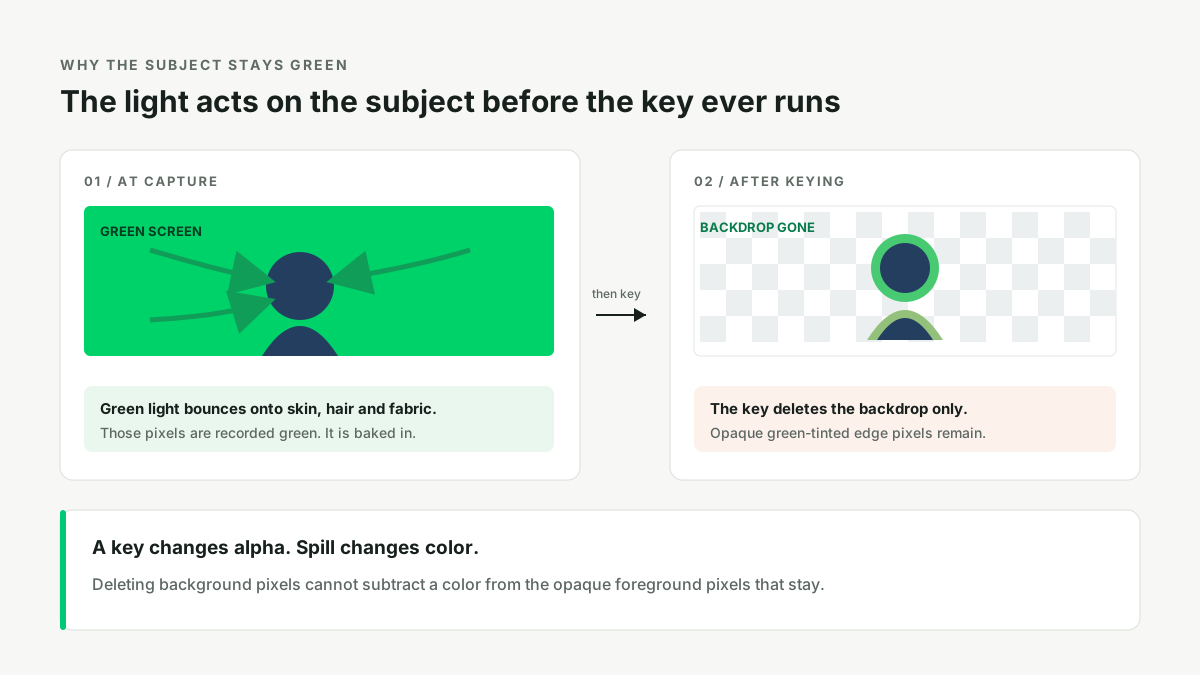
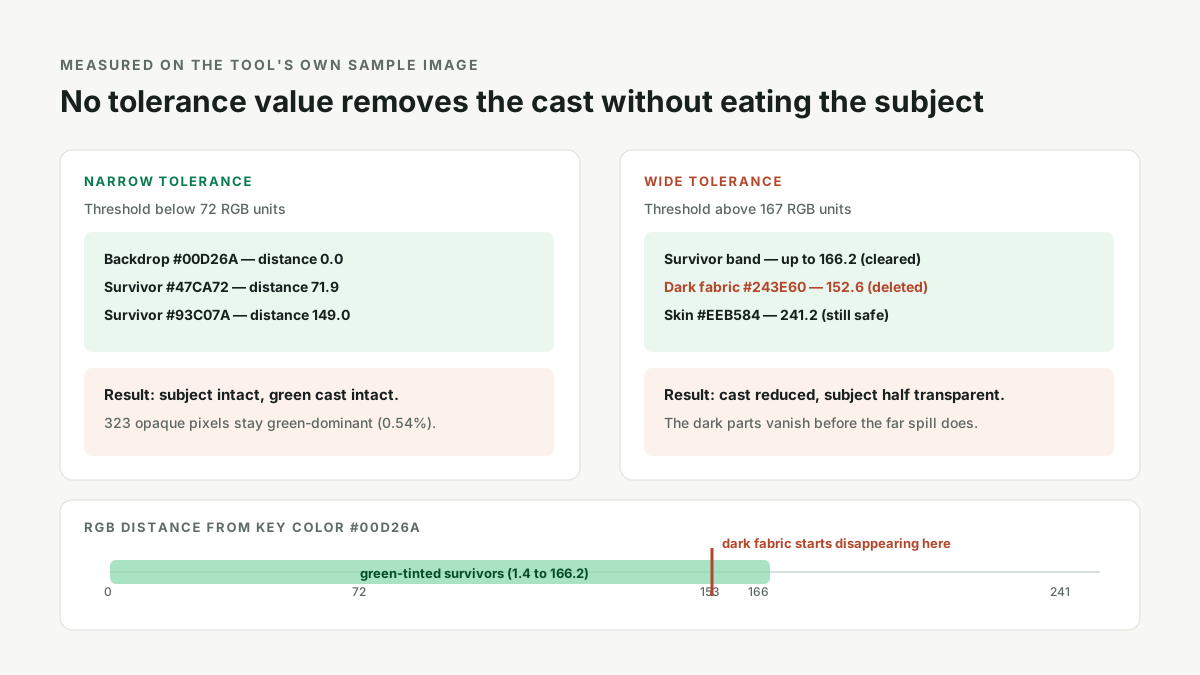
A green screen remover deletes pixels; it cannot recolor the pixels it leaves behind. The green cast on your subject is light that bounced off the backdrop before the shutter closed, so those skin, hair and fabric pixels really are green now, not leftover background. Fix it at capture with more distance, separate lighting and flags, or later with a spill-suppression pass in an editor. Widening tolerance to chase the tint will remove the subject instead: on our own 640 by 420 test image the survivor band reaches 166 RGB units from the key color, and the subject's dark fabric sits at 153.
Open the green screen remover ↗
What the key actually changes, and what it does not
A color key is a distance test with a single output. For every pixel it measures how far that pixel's color sits from a chosen key color, and if the distance is under the threshold it sets that pixel's alpha to zero. That is the entire operation. It never writes a new red, green or blue value into a pixel that survives. There is no step in the algorithm that says "this patch of skin used to be warmer before the screen lit it". A still-image key therefore has exactly one way to influence the result: deciding which pixels disappear.
This distinction explains a very specific kind of disappointment, where the backdrop is perfectly gone and the cutout is still unusable. One editor described it precisely after a clean key: "the people in the shot still have streaks of green light across their clothes and bodies". Another, working on head shots, wrote: "It was evenly lit, but between the light and the green, the color reflected on his head." In both cases the key did its job flawlessly. The problem is that the green is no longer in the background at all. It has moved into the foreground at capture time, and deleting background pixels cannot subtract a color from opaque ones.
We measured this on the sample image shipped with this tool. The source is 640 by 420 pixels with a flat backdrop of #00D26A: of 29,960 sampled pixels, 23,037 are exactly that value. After keying, the transparent PNG contains 208,648 fully transparent pixels, 59,590 fully opaque ones and 562 partially transparent edge pixels. Among the opaque foreground, 323 pixels, about 0.54 percent, are still green-dominant, with values like #47CA72 and #93C07A. Those are the spill survivors. They are fully opaque, they are inside the subject's outline, and no alpha operation will touch them.
Why a wider tolerance makes it worse, in numbers
The natural reaction to a green halo is to raise tolerance. On a real image that fails for a measurable reason: the tinted foreground pixels and the legitimate foreground pixels occupy overlapping positions in color space. Using Euclidean distance in RGB from the key color #00D26A, here is what our test image actually contains.
| Pixel | RGB | Distance from key | What a wider threshold does |
|---|---|---|---|
| Flat backdrop | #00D26A | 0.0 | Removed at any tolerance above zero |
| Spill survivor, light edge | #47CA72 | 71.9 | Still opaque until tolerance passes 72 |
| Spill survivor, mid blend | #93C07A | 149.0 | Still opaque until tolerance passes 149 |
| Subject, dark fabric | #243E60 | 152.6 | Starts disappearing at 153 |
| Subject, skin tone | #EEB584 | 241.2 | Starts disappearing at 242 |
Across all 323 survivors the distance to the key color ranges from 1.4 to 166.2, with a median of 87.8. To clear the far end of the spill band you would have to set tolerance above 166, but the subject's dark fabric is already inside that radius at 152.6. There is no threshold that removes every tinted pixel and keeps every subject pixel. Raising tolerance does not converge on a clean cutout; it crosses a point where the subject begins to erode, which is exactly the "half transparent" result people report. The edge-softness control cannot help either, because softness only feathers the alpha boundary. These pixels are opaque, so there is no boundary at that location to feather.
One product photographer hit precisely this wall. Working with a rotating object about two to three feet from the screen, they wrote: "The black leather and the top of the product reflects so much that the keying eliminates it completely as the color technically matches that of the shadows in the screen its self, and BAM! The item is half transparent. Modifying the key's parameters do nothing to help". That last sentence is not a complaint about a bad slider. It is a correct diagnosis of what a threshold-based tool cannot do.
Where the green actually comes from
A lit green screen is not just a background; it is a large colored light source. Green light travels off the screen and lands on whatever is in front of it. Any surface facing the screen receives some of that light, and the effect grows sharply as the subject gets closer, because illuminance falls off with distance. Specular and semi-gloss surfaces are worst: bald heads, polished car paint, leather, glass and plastic visors return a clean green highlight rather than a diffuse tint. A car photographer running a vehicle green-screen room described the symptom on candy-apple red paint: "See the green outline on the trunk and hood of the car? How do I solve this problem? Is this a problem in lighting?" It is a lighting problem, and it is the most common one in this category.
That also explains why a fix attempted in the wrong place keeps failing. Someone trying to key footage in a film editor asked for "some green spill I've seen there is a despill filter but I cannot find an example of how to use it". Another user, trying to build a virtual screen in 3D, asked "How would I make a green screen that has absolutely 0% reflection, and does not cast or receive shadows?" and noted that "every time there would be a reflection on the objects in the scene". Both are describing the same physics: a bright colored surface bounces light, and a color key has no model of light transport. Nor is this limited to photography software. A designer removing a backdrop in GIMP found that "removing a green screen using GIMP messes up the colour balance of the elements in the image", which is the same observation from the color-correction side of the workflow.
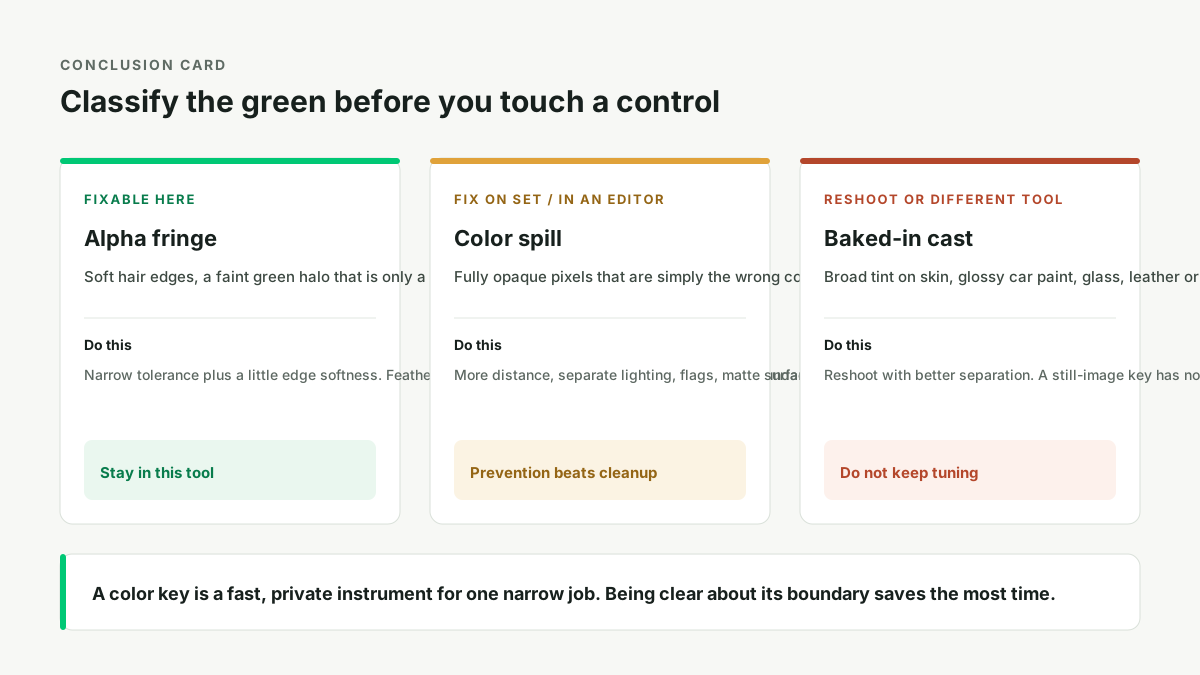
There is a useful boundary here between two things that look alike. A green fringe on hair or a soft edge is an alpha problem: those pixels are a blend of foreground and backdrop, and careful tolerance plus a little feathering can improve them. Green spill is a color problem: the pixel is fully opaque and simply has the wrong color. The first responds to a slider; the second does not. Telling them apart before you start tuning saves most of the wasted effort.
Two places to fix it: before the shot, and after
On set, which is where it is actually solved
- Increase the distance. Put at least a metre between subject and screen. This is the single highest-leverage change, because bounce falls off quickly with distance. One product shooter noted they could only manage two to three feet before the screen edges entered frame; if that is your constraint, use a larger backdrop rather than accepting the reflection.
- Light the screen and the subject separately. Even, dedicated light on the backdrop lets you keep tolerance narrow. Light the subject with its own sources so the screen is not doing double duty as a fill light.
- Flag the bounce. A black flag or negative fill between screen and subject, especially beside a shiny side, blocks the green light before it reaches the surface.
- Change the surface, not the slider. Matte clothing, powder on a bald head, a polarizer on a reflective product, and a change of lighting angle all remove the highlight at source. A request that comes up repeatedly is which fabric "does not reflect the green color and will have the least reflection"; no fabric fixes a bad angle, but matte finishes help considerably.
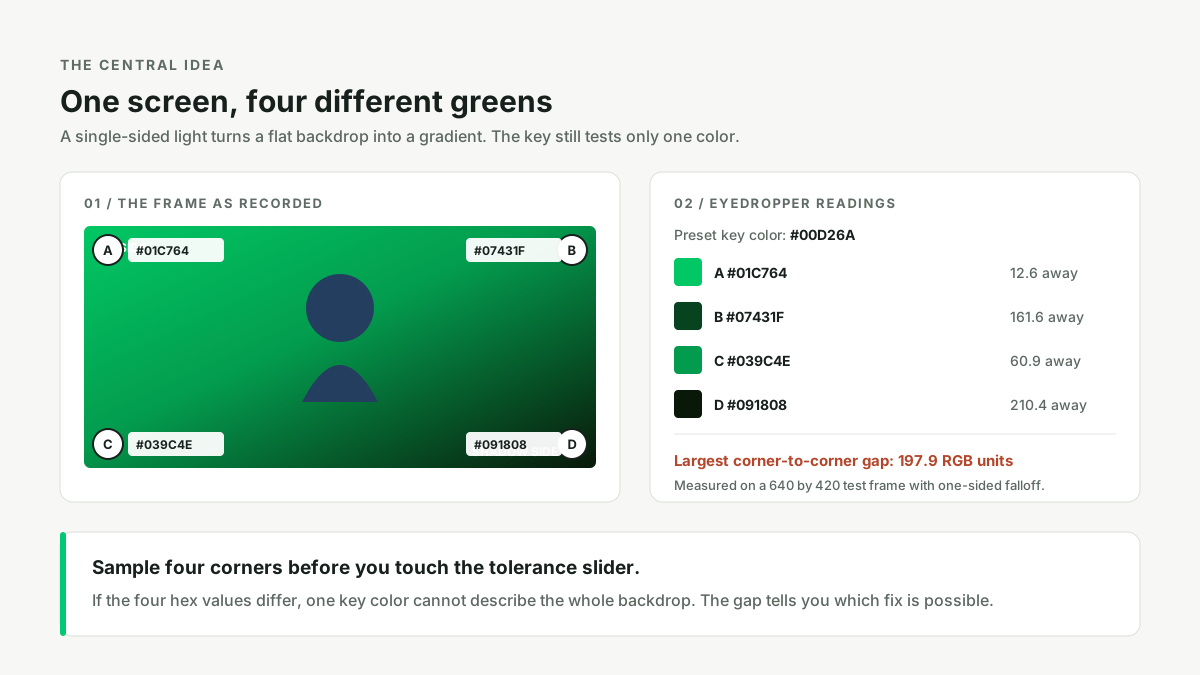
- Lock the camera. Manual exposure and manual white balance keep the recorded green stable. Auto settings shift it from frame to frame, which makes a single key color unreliable.
In post, which is mitigation rather than repair
Spill suppression, usually called despill, is a separate color-correction pass. In its simplest form it caps the green channel of affected pixels at the maximum of their red and blue channels, pulling a green cast back toward neutral without changing transparency. Applied selectively to the edge band, or as a hue and saturation adjustment limited to the green range, it can make a mild cast disappear. It is a rewrite of color values, and it is why editors ship it as a distinct filter rather than as part of the key.
Be honest about what this tool does. It runs locally in your browser with the Canvas API, gives you a key color with an eyedropper, a tolerance and an edge-softness control, and returns a transparent PNG. It has no despill stage, no selective color adjustment and no video export. If the tint is a thin rim, export the PNG and correct it in an editor with a hue selection. If the cast is broad and baked into skin or a large reflective area, the practical answer is to reshoot with better separation. A color key is a fast, private instrument for a narrow job, and pretending otherwise wastes more time than it saves.
A five-minute check on your own image
Rather than guessing, run these four steps on any cutout that still looks green.
- Sample the backdrop and the suspect edge. Use the eyedropper on a clean background pixel, then on a green-looking pixel inside the subject. If the second value is green-dominant and fully opaque, you have spill, not leftover background.
- Test the overlap. Raise tolerance in small steps and watch the subject's darkest areas. If the tint survives until the moment the subject starts thinning, the two cannot be separated by a threshold. Stop there.
- Check on two backgrounds. View the exported PNG over a checkerboard, then over white and over dark grey. A cast that is obvious on dark grey but subtle on white is a color problem you should fix before compositing, not an alpha problem.
- Decide before tuning. Thin soft fringe: feather and move on. Opaque green cast: correct the hue in an editor or reshoot. That decision is worth more than another ten minutes on the slider.
For the wider set of failure modes, including uneven lighting, wrinkles and accidental holes, see Why a Green Screen Remover Fails, which sorts twelve symptoms by cause and by whether a slider can fix them.
Questions people actually ask
- Why does my subject still look green after the background is gone?
- Because a color key deletes pixels, it does not recolor the ones it keeps. The green light landed on the subject before the shutter closed, so those pixels are genuinely tinted. Fix distance and lighting at capture, or use a spill-suppression pass afterwards.
- Can I remove green spill by raising the tolerance slider?
- No. On our test image the tinted survivors span 1.4 to 166.2 RGB units from the key color, while the subject's dark fabric sits at 152.6. Any threshold that clears the tint also removes part of the subject.
- How do I eliminate green-screen bounce?
- You eliminate it on set, not in the keyer. Move the subject at least a metre away, light the screen separately, flag the bounce, and avoid shiny props. Once the tint is recorded, only a selective color adjustment can reduce it.
- Does spill suppression belong in a green screen remover?
- No, it is a separate color-correction pass, not part of a color key. A key decides which pixels become transparent; despill rewrites the color of pixels that stay opaque.
- Why does a reflective product turn half transparent when I key it?
- Because the reflection carries the key color into the foreground. A glossy surface mirrors the screen, and a per-pixel color test deletes that green along with the backdrop. Change the lighting angle, use a polarizer, move the object, or mask the reflective area.
- Is a green fringe on hair the same problem as green spill?
- No. A fringe is a blend of foreground and backdrop and is an alpha problem that a little feathering can improve. Spill is a fully opaque pixel with the wrong color, and it needs a color correction, not an alpha adjustment.